21.09.2026
The assembly process in the Dubina 3D constructor
description, assembly, process
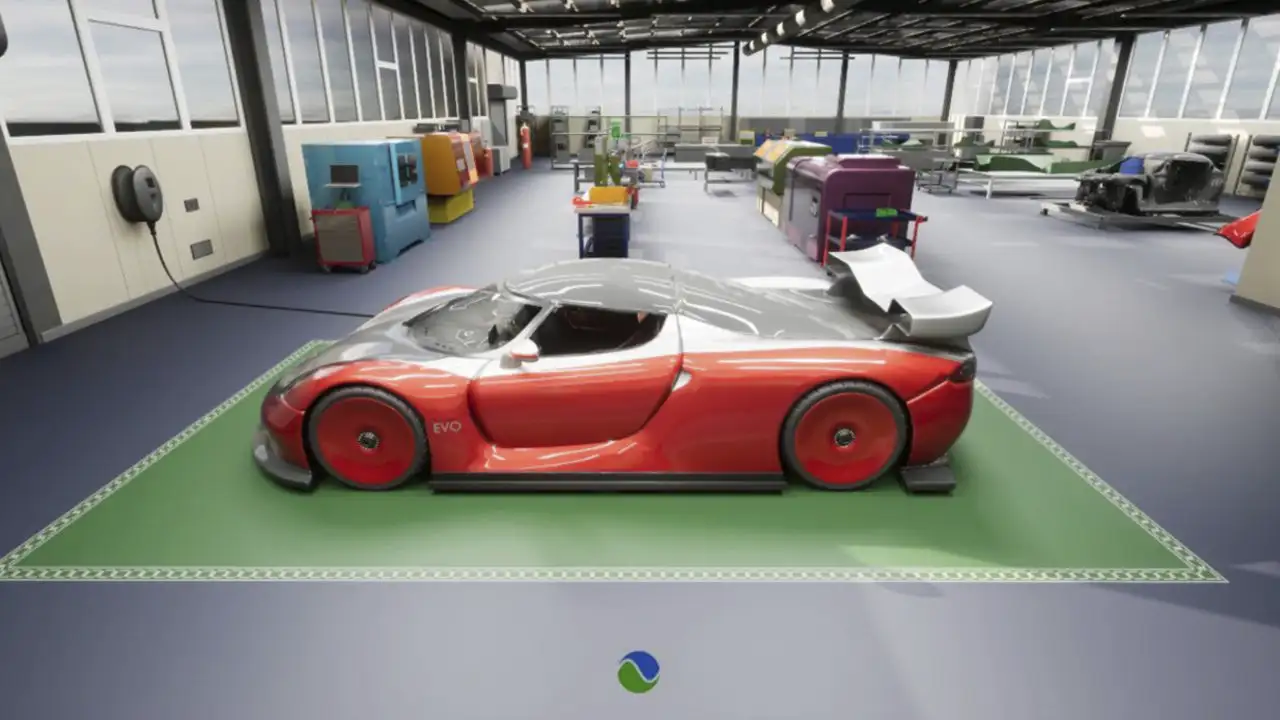
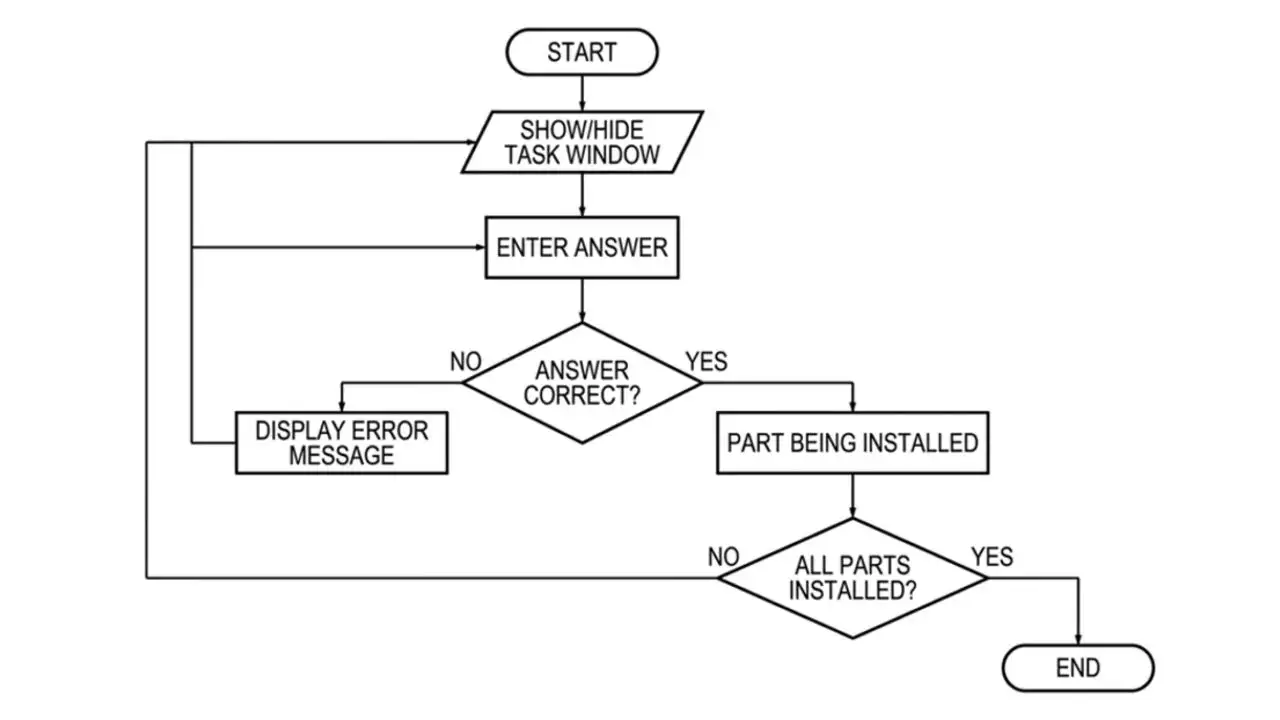
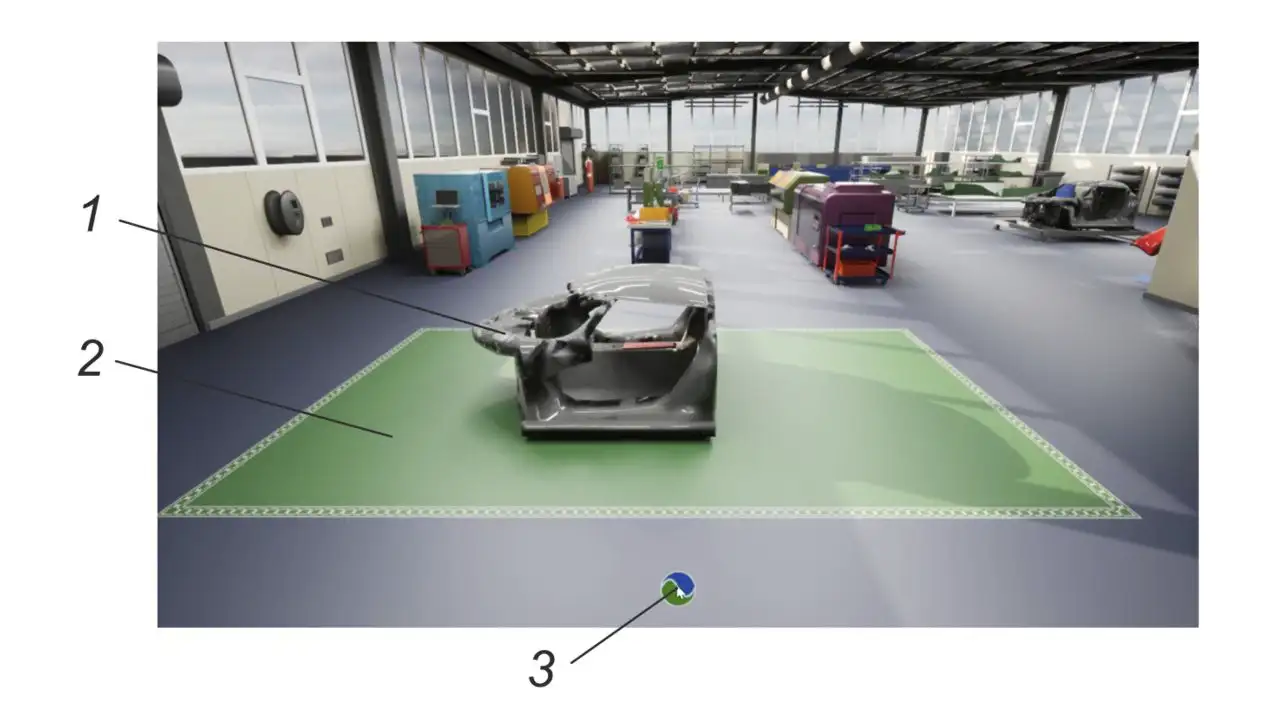
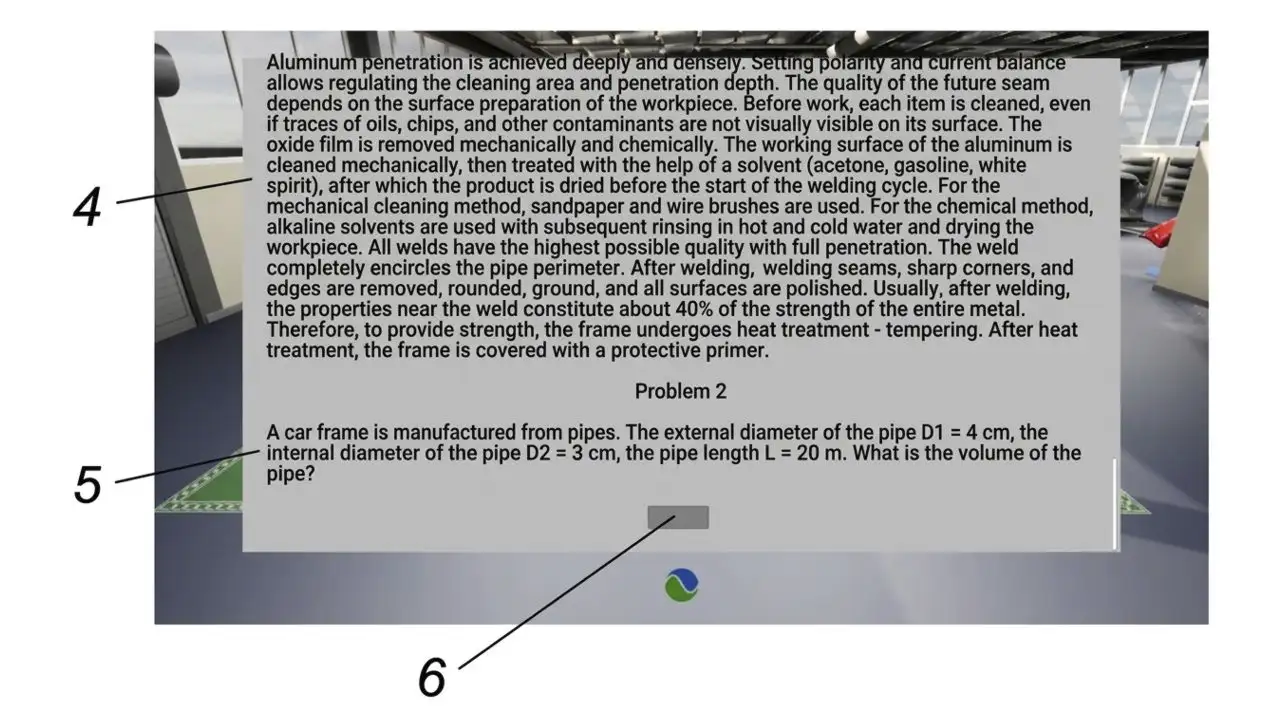
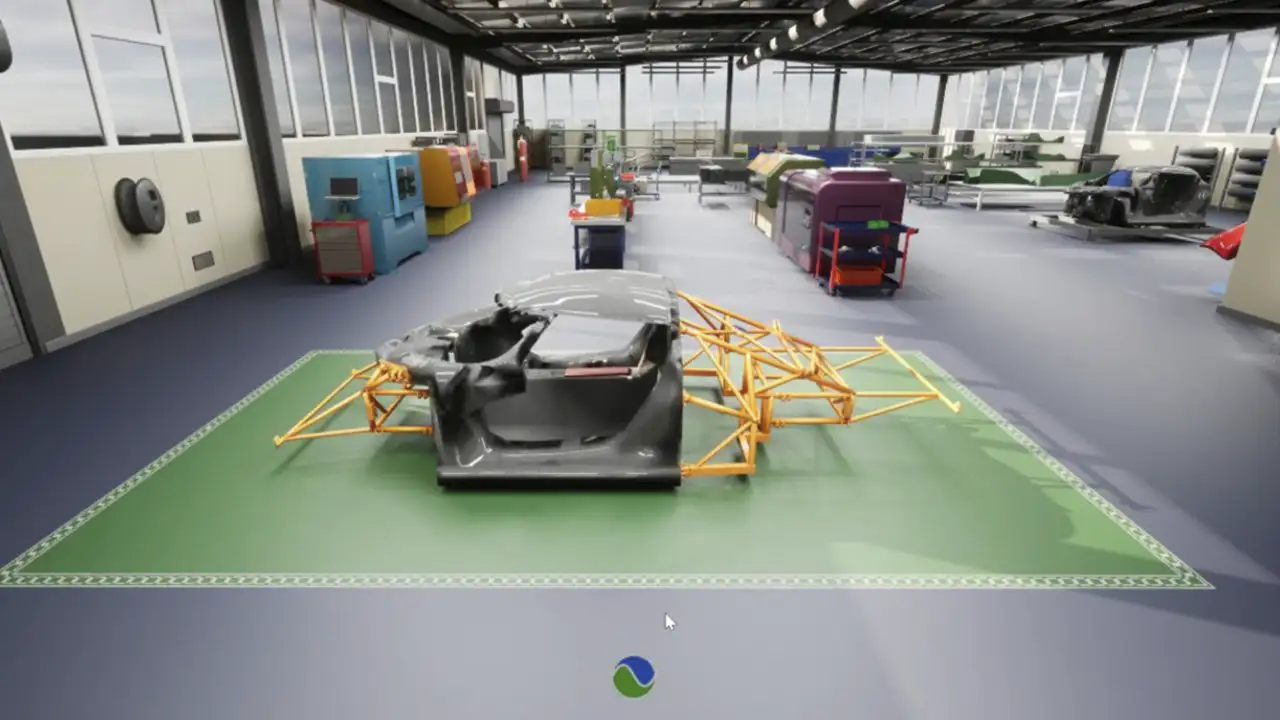
In the Dubina online platform, when launching the 3D constructor, the user is presented with an interactive three-dimensional scene containing the model assembly area. Installation of a model part is carried out only after the user has successfully completed the task. To do this, when you click on the button at the bottom of the screen, a window with a task is displayed, which can be shown or hidden at the user’s request. The task window contains information about the corresponding part, the task condition and a field for entering an answer. When you enter the correct answer, the system automatically places the corresponding part in the assembly area. If the answer is incorrect, the user is given an error message and given the opportunity to re-enter. The user is also given the ability to reposition the camera view to view the model, including zooming in, out, and rotating around the assembly area. This provides a more convenient perception of the assembly process and a visual representation of the assembled part of the model. This is a new way of assembling a three-dimensional model, which eliminates the random substitution of parts by manipulating them in space, and also achieves a combination of the process of learning and testing knowledge with the process of step-by-step assembly. The method of assembling a three-dimensional model in an interactive environment is carried out according to the algorithm presented in the block diagram (Fig. 1). After launching the computer application, an interactive three-dimensional scene is displayed on the screen (Fig. 2), containing a model part (1) and the model assembly location (2). At the bottom of the screen there is a button (3) to show or hide the task window. When you click on the button (3), a task window opens (Fig. 3), containing information about the part (4), the task condition (5) and a field for entering an answer (6). The user solves the problem and enters the answer in field (6). The entered answer is checked by the system for correctness. If the answer is incorrect, the user is shown an error message and then given the opportunity to re-enter. If the answer is correct, the corresponding part is automatically installed in the structure of the three-dimensional model (Fig. 4). The user can hide the task window by pressing the button (3), and also change the position of the view camera, rotating the scene, zooming it in or out, for a more convenient view of the assembly site. When you press the button (3) again, a window with the next task is displayed, after which the process is repeated. Assembly continues until all parts of the model are installed. After installing the last part, the assembly is completed.